I remember the days when I had to import AWS resources into Terraform. I wrote a Terraform configuration, then, one by one, collected resource IDs and ran the Terraform import command via the CLI. Unfortunately, this process was a nightmare, taking hours and hours of work.
When HashiCorp announced new features at HashiConf 2025, my favorites were Terraform Search, MCP (Model Context Protocol) servers, and Terraform Stacks. We will talk about Stacks next time, and today I would like to discuss Terraform Search and partially Terraform MCP Server Capabilities.
I first tried Terraform Search in October 2025; it was in Beta. I built a lab on AWS using HCP Terraform with Search and tested it. Then I showed it to one of my customers, and they were impressed and excited. 🙂
In December 2025, Terraform Search became Generally Available (GA). Right now, I am exploring different ways to migrate existing infrastructure into HCP Terraform. And I decided to try Terraform Search again as an option, but this time on Azure, which is the cloud of choice for the current Customer.
For my PoC lab, I need the following prerequisites:
- Azure Subscription
- Azure Entra ID access to create a Service Principal or an existing one with Contributor access on my Subscription
- IDE: VS Code
- Docker Desktop
- GitHub account with Copilot enabled
- HCP Terraform and Terraform CLI
- Terraform MCP Server
Azure Subscription
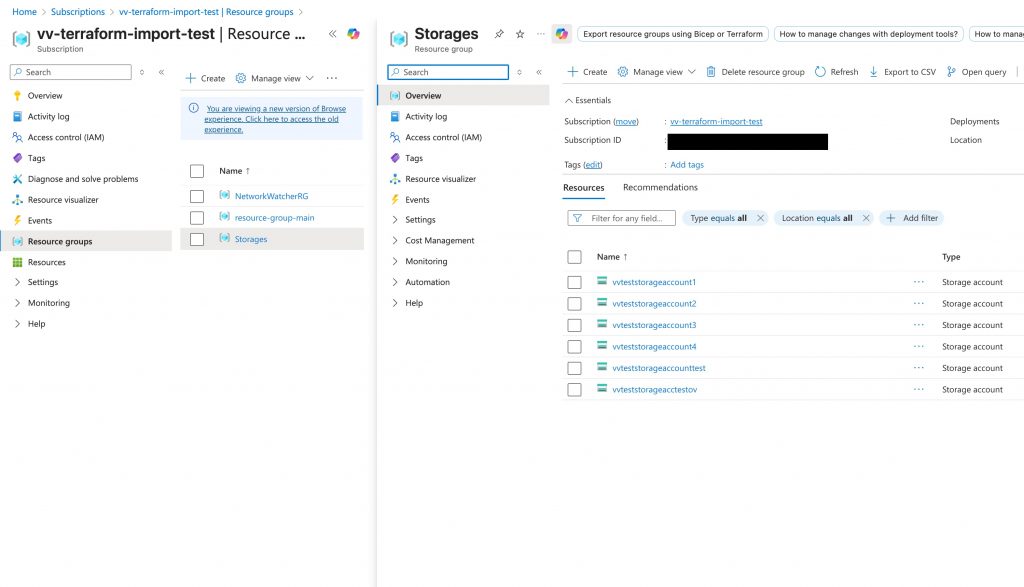
In my Azure Subscription, I created a few resource groups, a vNet, and a few storage accounts. Let’s agree this is an existing customer’s infrastructure and we want to onboard it into HCP Terraform for future management.
I won’t go into detail on Service Principal Configuration, VS Code, GitHub, or Docker Desktop. Let’s assume you have already configured all of these components and they are running. I believe that HCP Terraform is also in use. Next, we need to configure our Terraform MCP Server.
Generate a HCP Terraform Team Token
In HCP Organization, go to Settings → API Tokens -> Team Tokens:
- Create a team token, choose owners from the dropdown, and set an expiration
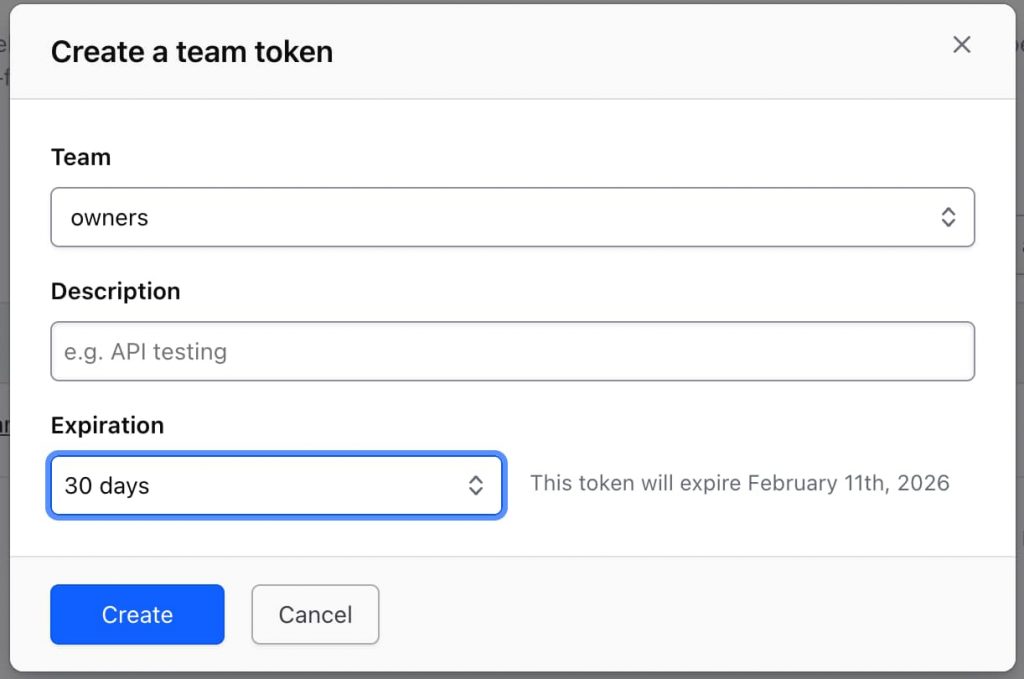
- Copy the token and store it in a safe place, and in your system environment variables, set it as
$TFE_TOKEN
Configure Terraform MCP Server in VS Code
Open VS Code Settings:
- Press Cmd + Shift + P
- Add MCP Server Configuration
- Add the following configuration to your
mcp.jsonfile
{
	"servers": {
		"terraform": {
			"command": "docker",
			"args": [
				"run",
				"-i",
				"--rm",
				"-e",
				"TFE_TOKEN=${input:tfe_token}",
				"-e",
				"TFE_HOSTNAME=${input:tfe_hostname}",
				"hashicorp/terraform-mcp-server:0.3.3"
			]
		}
	},
	"inputs": [
		{
			"type": "promptString",
			"id": "tfe_token",
			"description": "Terraform API Token",
			"password": true
		},
		{
			"type": "promptString",
			"id": "tfe_hostname",
			"description": "Terraform Hostname",
			"password": false
		}
	]
}
*When you first start your MCP Server, it will prompt for TFE_TOKEN and TFE_HOSTNAME.
Start the Terraform MCP Server
Open the MCP Server Configuration in VS Code:
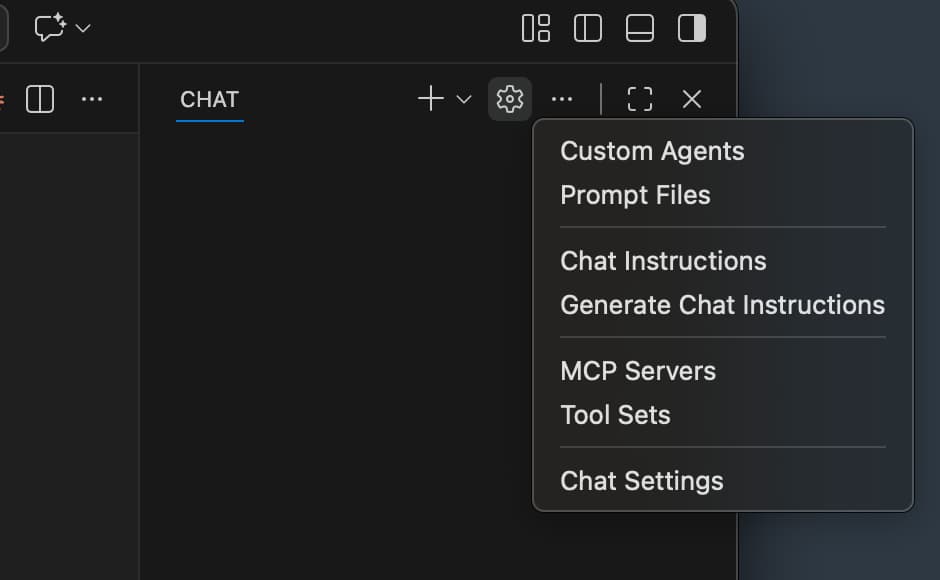
- Click on the Configure Chat button
- Select “MCP Servers”
Start the MCP Server:
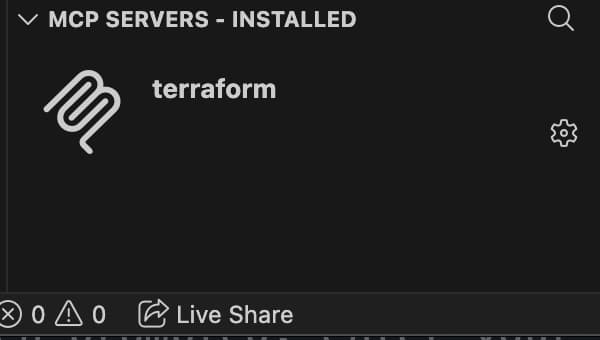
- In the bottom left panel, find the MCP server named “terraform”
- Click the gear icon on it
- Press “Start Server” from the dropdown menu
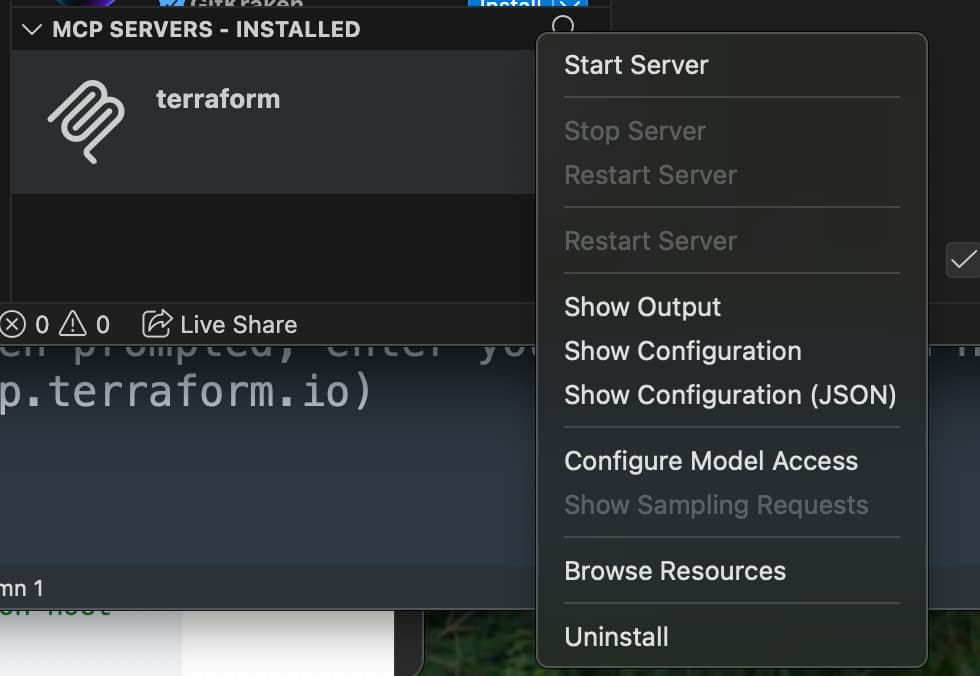
- When prompted for TFE_TOKEN, enter your HCP Terraform API Token
- When prompted TFE_HOSTNAME enter ‘app.terraform.io’.
Check that the Terraform MCP server is up and running without errors in the output.
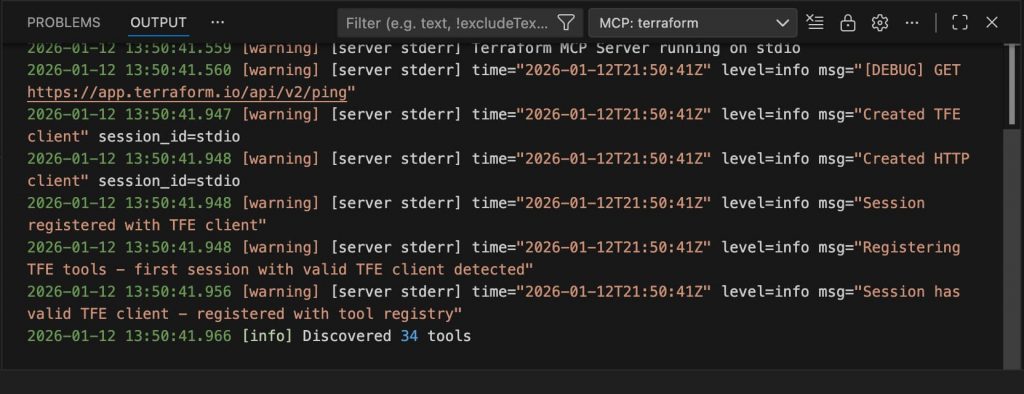
Nice! Now we can start!
Chat with Copilot and writing configuration
To start writing configuration and query Azure via Terraform Search:
- Create an empty folder and open it with VS Code
- Toggle Chat and choose an AI Model. I chose Model: Claude Sonnet 4.5 based on a coworker’s recommendation, who is more advanced in AI
- Create an initial commit to the registry with, let’s say, a Readme file
- In HCP Terraform, create a Workspace with the VSC workflow and connect a GitHub repository with the initial code
- Configure Workspace variables with the Service Principal data to access the Azure Cloud. The best practice is to use a Federated credential for HCP Terraform OIDC. I used a client ID and secret for demo simplicity (only ARM_CLIENT_SECRET is sensitive; for publishing purposes all variables are marked as sensitive)
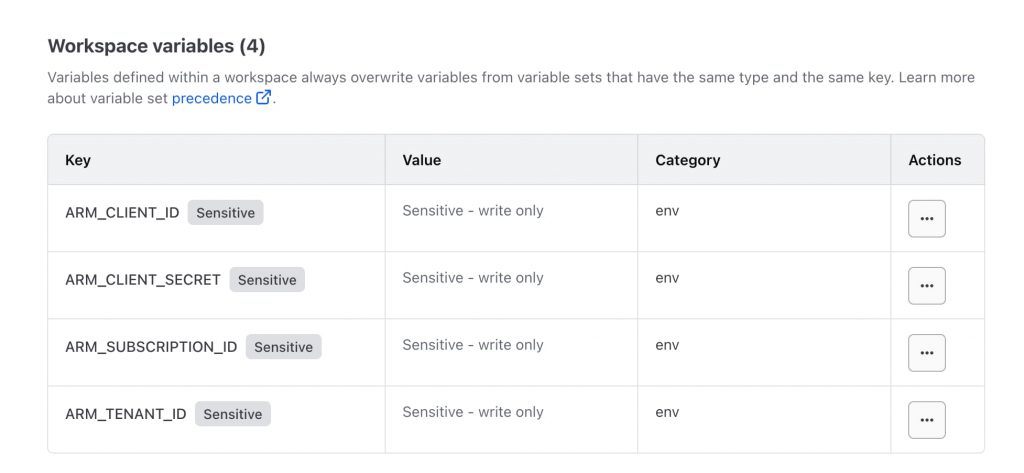
Once it’s done, let’s start chatting.
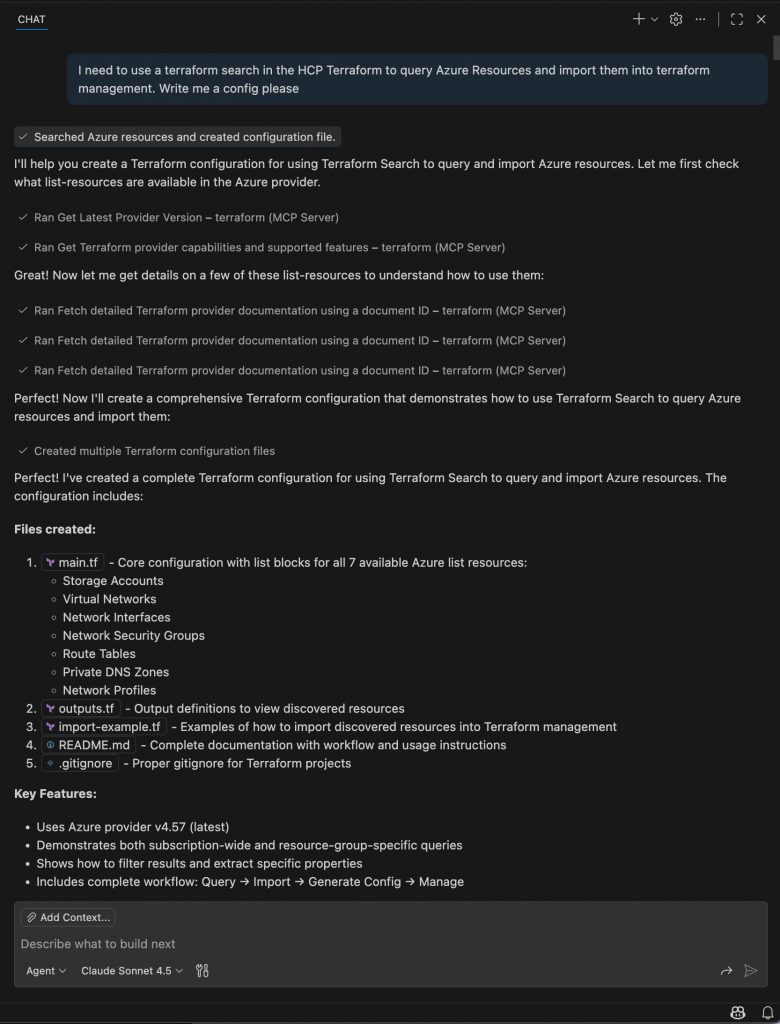
The initial code for the search was provided. But having experience with Terraform Search, I realized from a first look that the configuration is incorrect.
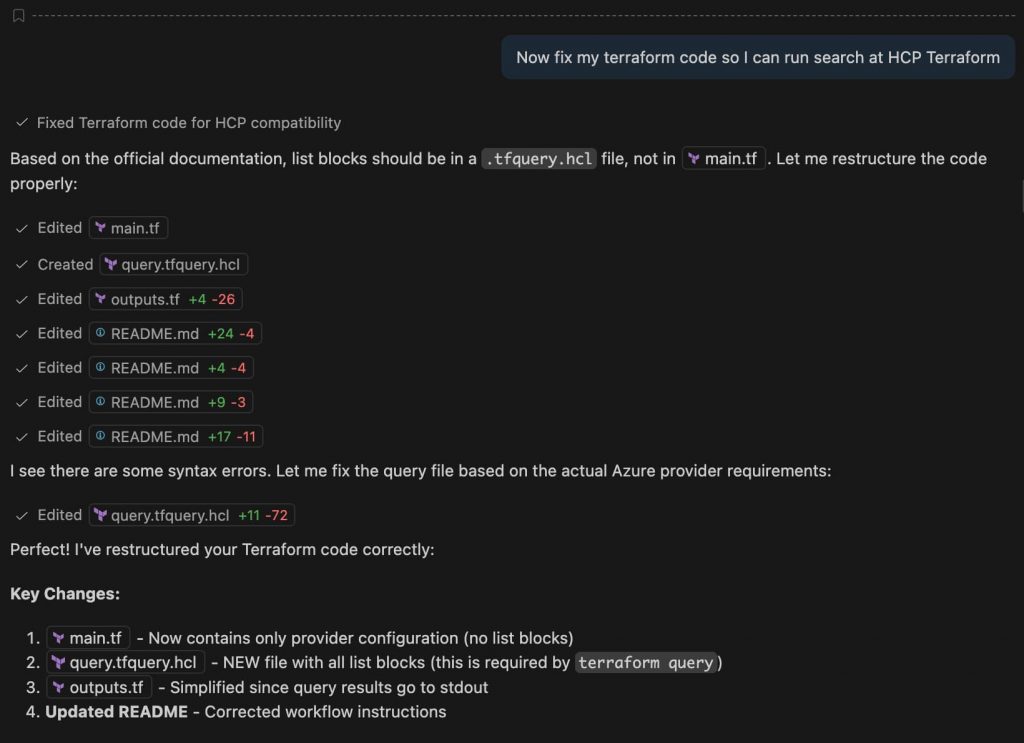
The file name with “list” blocks should be with’*.tfquery.hcl‘ extension and not main.tf. The README file also contained many discrepancies.
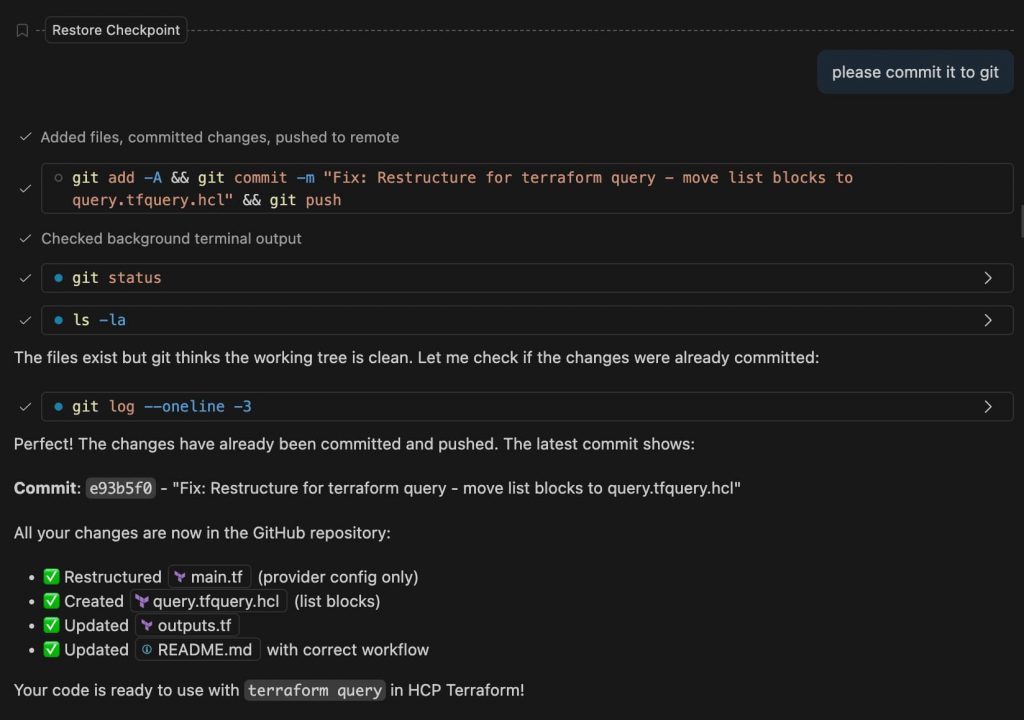
I was prompting back and forth, fixing errors, and committing changes to GitHub. Eventually, everything was settled.
I am not posting all the Terraform errors and AI chat prompts. 😀
Run Terraform Search in HCP Terraform
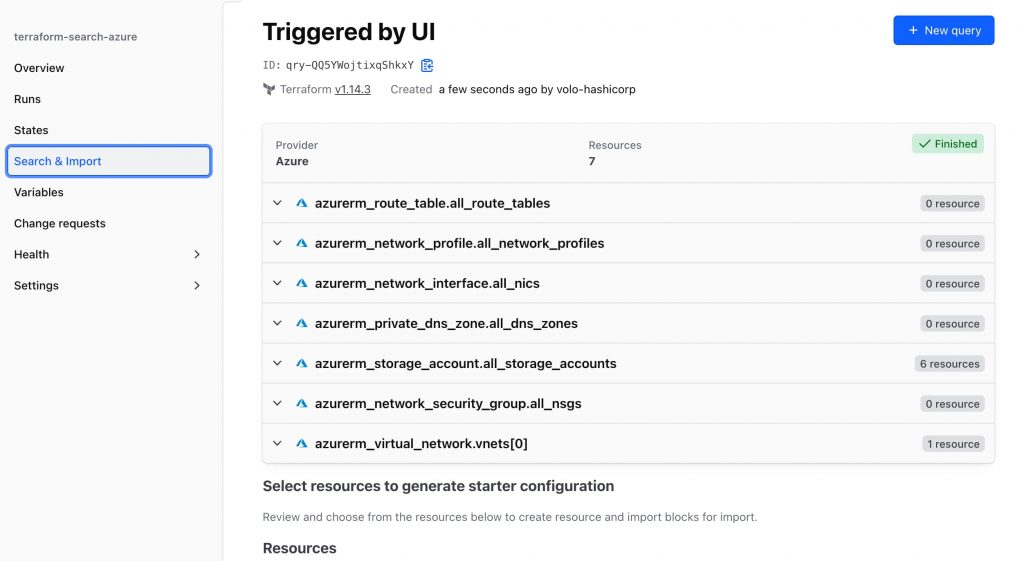
To start Terraform search in your HCP Terraform Workspace, choose Search&Import and press New query
Terraform will start querying Azure (via the provider and the Service Principal credentials defined in variables)…
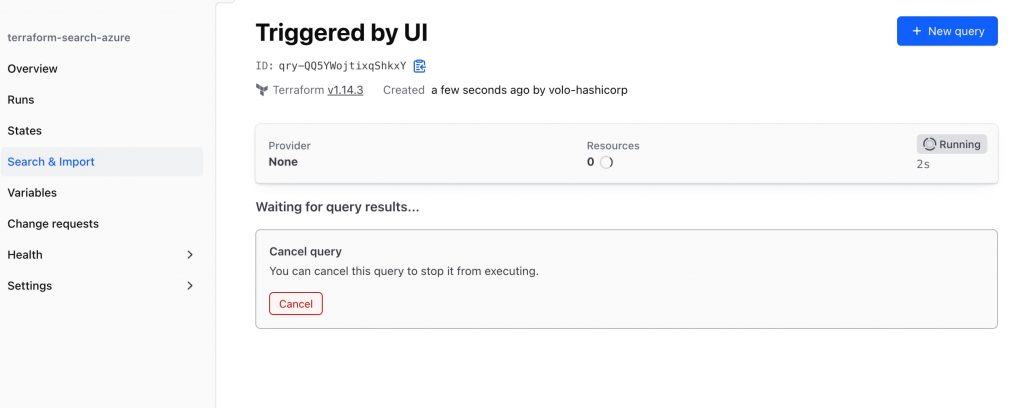
…and will return to you all the available resources based on the access to Management Groups/Subscription/Resource Groups provided and resources declared for listing. (You might have seen that the provider documentation now has, for example, a List resource: azurerm_storage_account)
Scroll down to see the actual resources and whether they are managed by HCP Terraform.
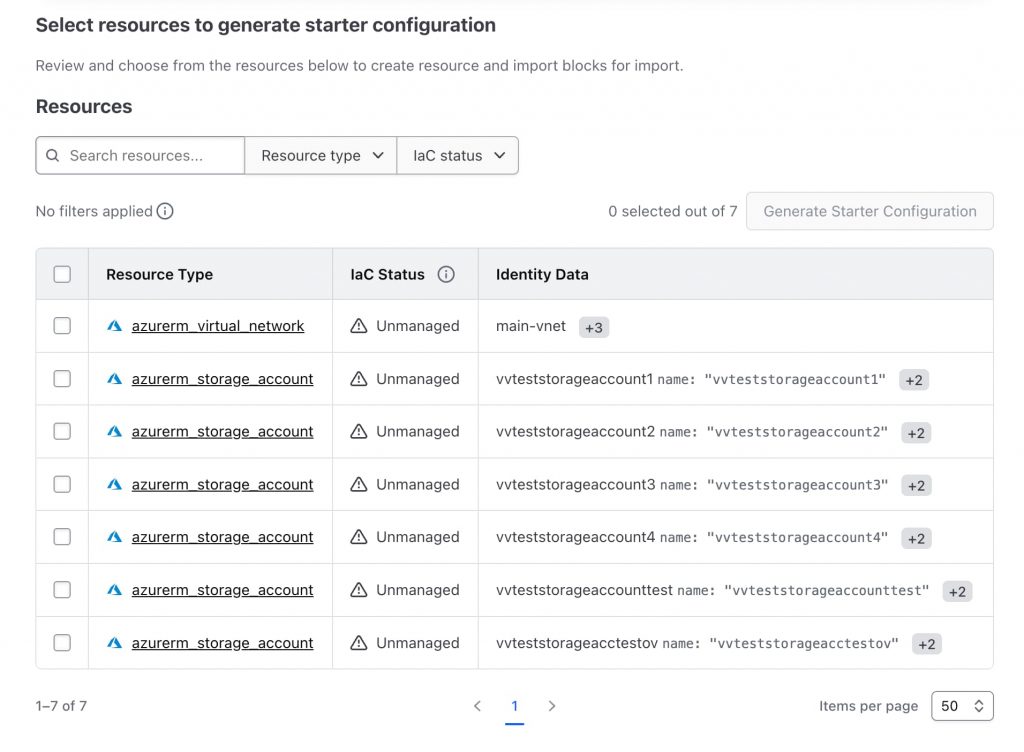
To import them all to Terraform:
- Select all of them
- Press Generate Starter Configuration
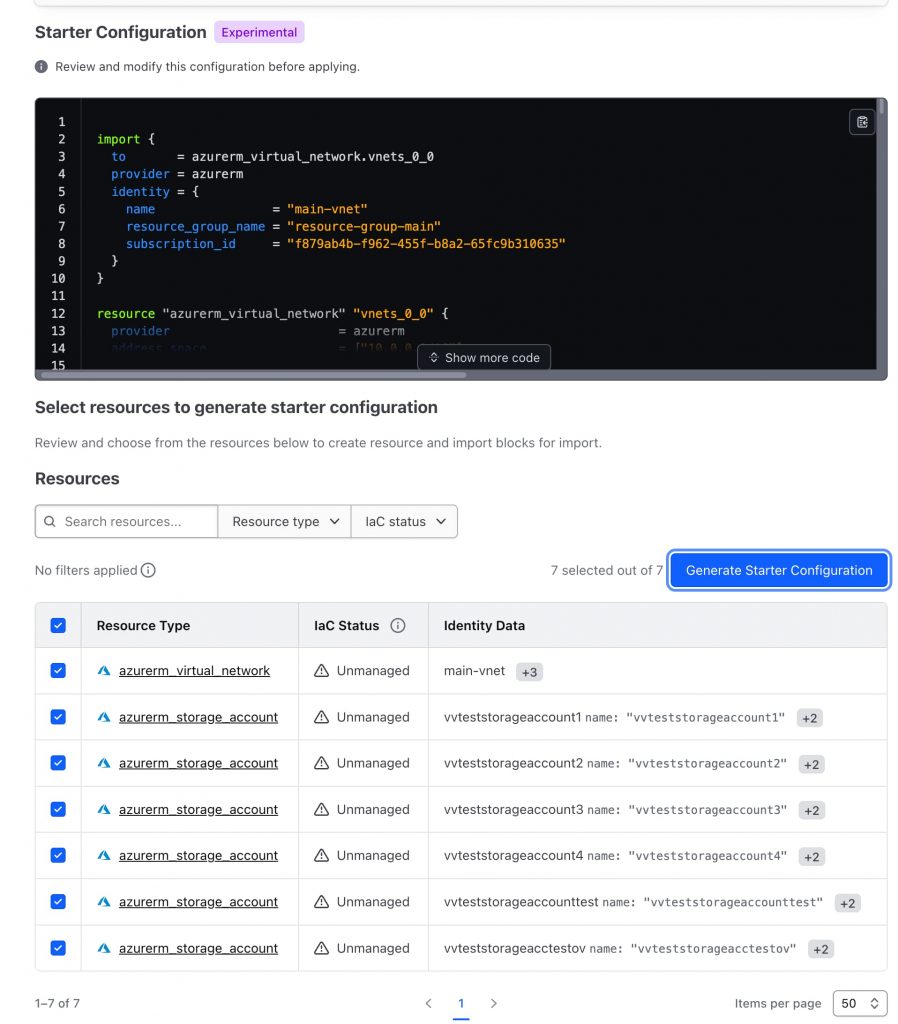
As a result, Terraform generates a repeatable block of code for each resource. Also, it has some limitations that require you to clean up the code.
You can find a full output of the Generated Starter Configuration here. It is manageable with 4-5 resources, but with 100 or more? And what do you do if you want to add a few more? Duplicate resource blocks?
And here is where your Generative AI of choice with Terraform MCP Server shines. When you have a model, it will give you answers based on its knowledge, or, if it’s online, on the internet search results, where Stack Overflow will be treated as a source of truth as well. With Terraform MCP, your AI will search in the latest Terraform documentation, can call your HCP Terraform, and check the modules that you have in your Private Registry, and can use their references in your code.
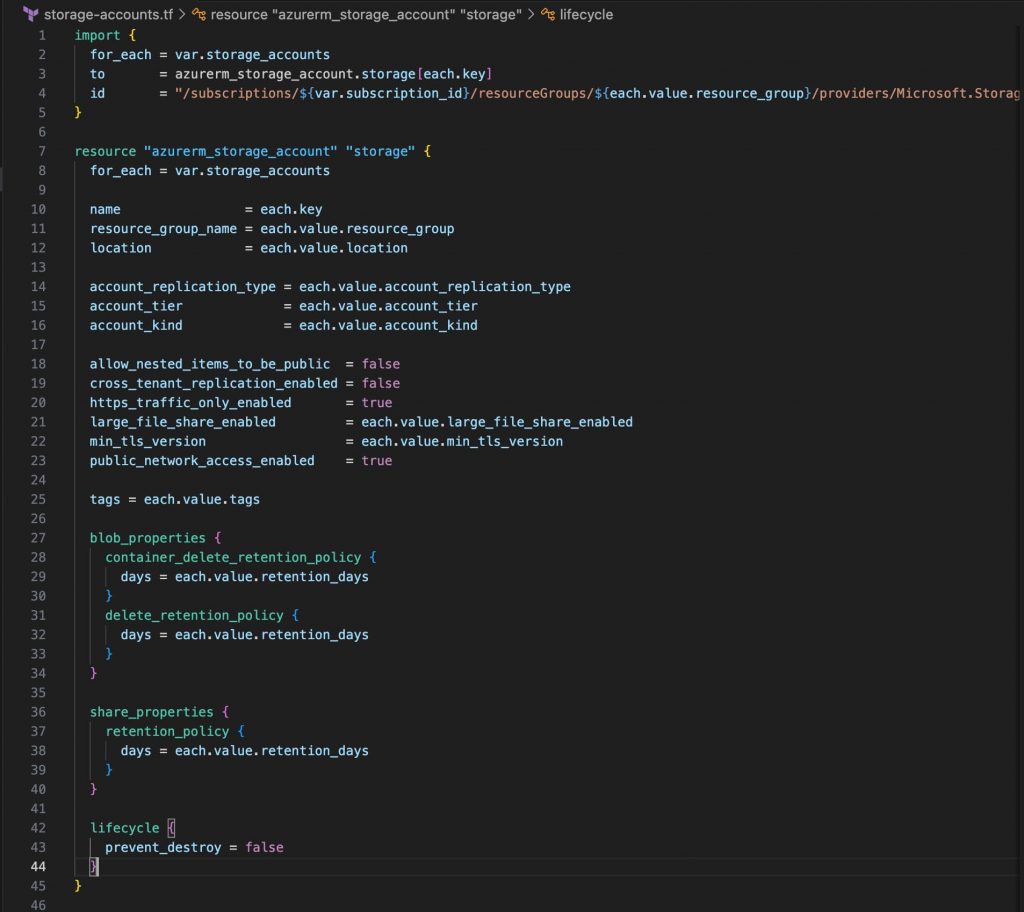
I took a generated code and asked Copilot to rewrite the resources block duplication to the for_each loop
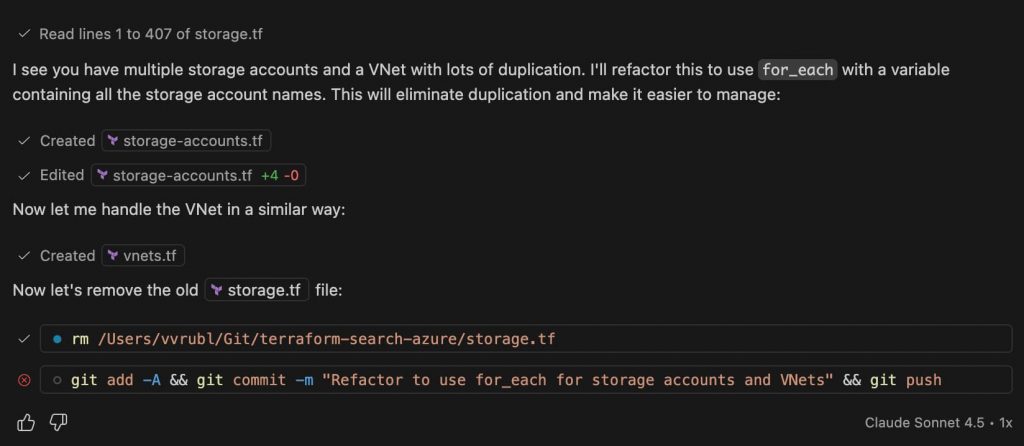
And got refactored and polished files. Storage example.
Commit changes, check the plan.
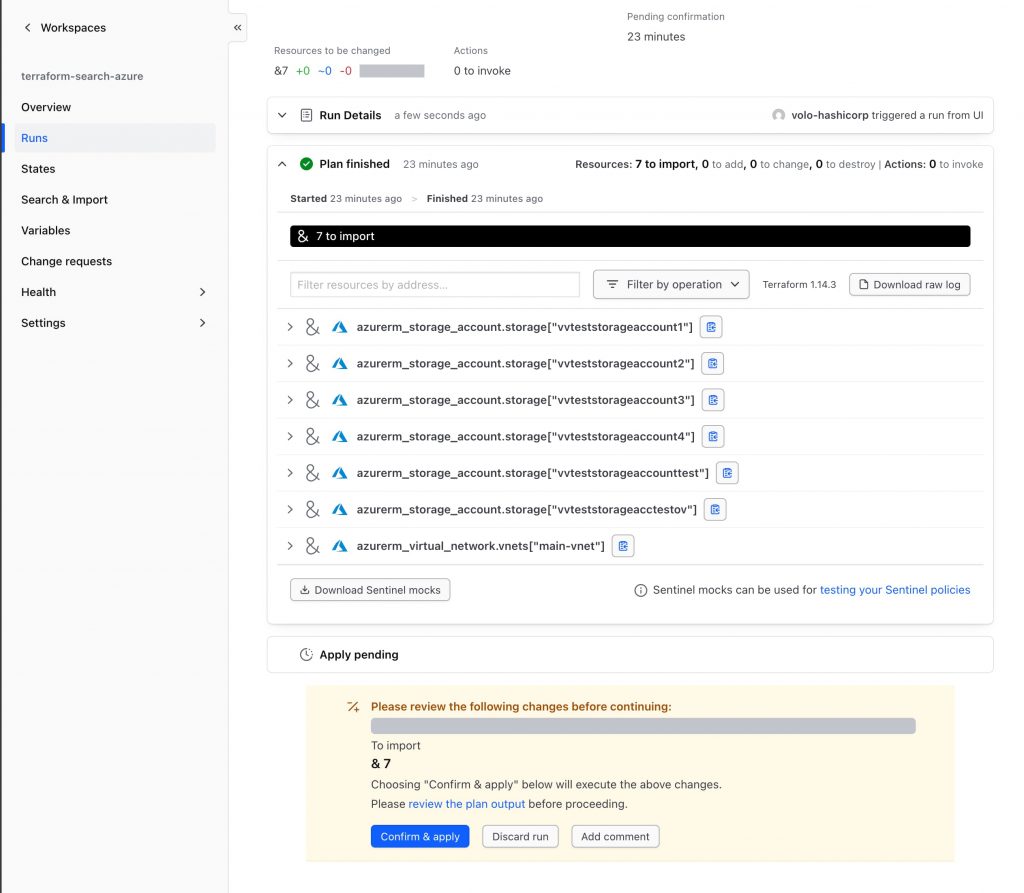
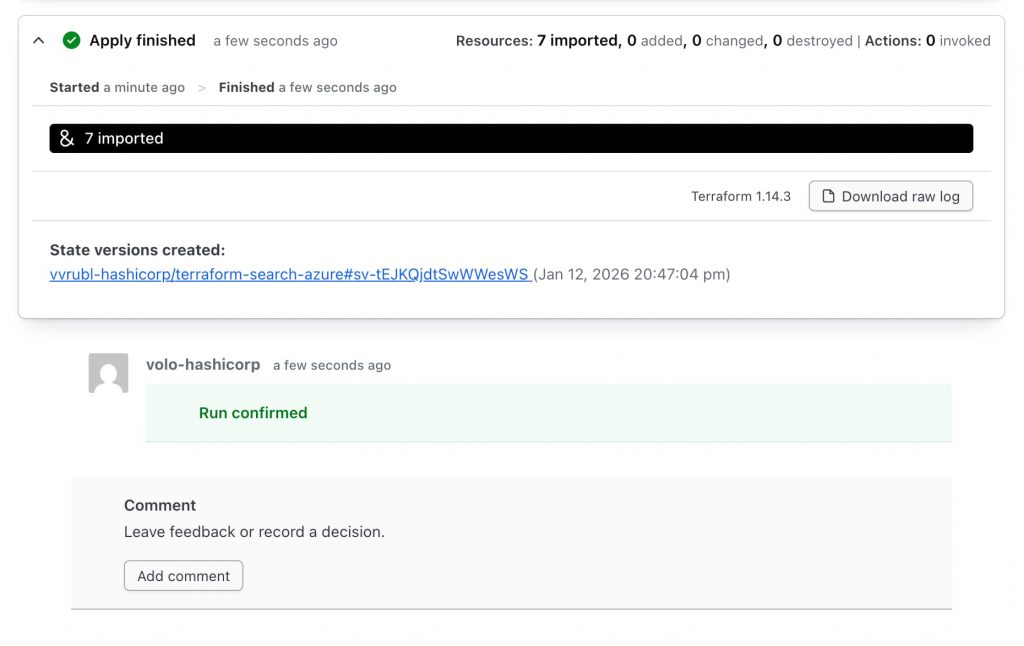
Confirm & apply
Conclusion
Terraform Search is a powerful and promising tool. Right now, it is available for the following resources in AWS and Azure:
- Azure: 7 list resources (storage accounts, virtual networks, network interfaces, NSGs, route tables, private DNS zones, network profiles)
- AWS: 15 list resources (Batch (2: job_definition, job_queue), CloudWatch Logs (cloudwatch_log_group), CodeBuild (codebuild_project), EC2 (aws_instance), IAM (3: policy, role, role_policy_attachment), KMS (2: alias, key), Lambda (lambda_capacity_provider), SQS (sqs_queue), SSM (ssm_parameter), VPC (2: subnet, vpc))
I hope the numbers will grow, and eventually we will be able to fetch any resource and import it into Terraform.
Terraform MCP server is sick! I remember in October, without the MCP server, it was a different story. Now it is easier, quicker, and with fewer hallucinations/errors.
I am very excited to see what else we will have with the MCP in the future for Terraform, Vault, and Vault Radar.
Deploy more and sleep better!
And…stay tuned! 😉

Leave a Reply